Today I am writing a simple guide to customize your terminal and add a nice fastfetch logo so that it looks like this:
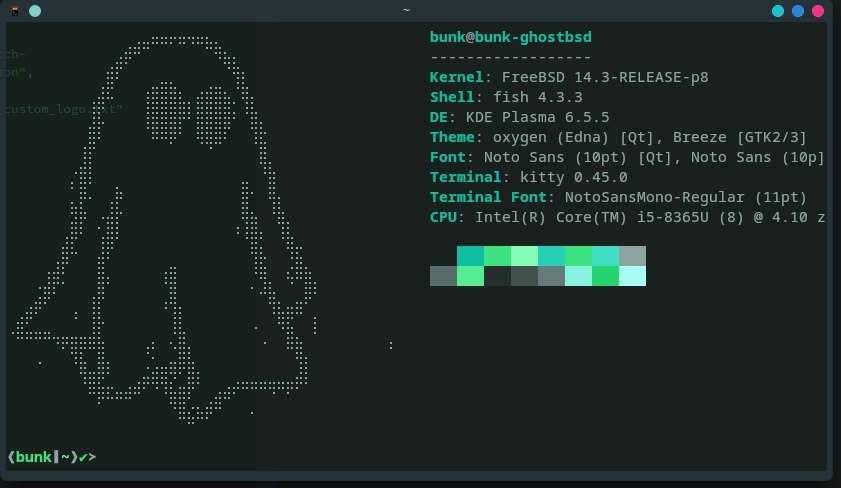
in order to get your fastfetch customized, we need to edit your fish config file by opening editor of your choice which will be of your choice but I use nano, but replace nano with whatever you want to use:
sudo nano .config/fish/config.fish
your terminal will prompt you for your password and you will enter it and get a config file which will look like:
if status is-interactive
# Commands to run in interactive sessions can go here
end
The top message will be needed to run the commands you will be entering below, the # and text sharing that line is a comment and it won't be added by the script, you can leave as is. below that comment you will want to add: fastfetch and on the line below: set fish_greeting "" and it should look like this:
if status is-interactive
# commands to run in interactive sessions can go here
fastfetch

set fish_greeting ""

end
you can save and exit, in nano it is ctrl+x and y for yes to overwrite the file and you will be set.
Setting Up Your Fast Fetch
So now you want to set up your fast fetch to have a custom ASCII image, if you first want to pick out some ASCII art you will want to use either:
- This will generate you ascii art from a simple image
-or-
- this is a site with hundreds of already made ascii art you can use
Once you are able to find one that will work withing the constraints for your terminal window size you will want to save the file in a .txt file and save it as logo.txt and save it in .config/fastfetch/.
Your next step will to be to create a fast fetch config file, you can do this by entering: fastfetch --gen-config
and this will create a new config.jsonc in your .config/fastfetch/ directory which you will be typing in next.
in your command prompt you will want to type sudo nano .config/fastfetch/config.jsonc and you will see a configuration file that looks something similar to this:
`
{
"$schema": "fastfetch-cli/fastfetchraw/dev/doc/json_schema.json",
"logo": {
"type": "auto",
"source": "path/to/logo.png", // Optional: specify a custom logo
"padding": {
"top": 0,
"left": 0,
"right": 0,
"bottom": 0
}
},
"display": {
"separator": " | ", // Customize the separator between modules
"color-keys": true // Enable colored keys
},
"modules": [
"title",
"os",
"kernel",
"uptime",
"memory",
"disk"
]
}
`
The key areas you want to edit would be: "source": "path/to/logo.png", and replace the text inside the quotations " " and replace it with "~/.config/fastfetch/logo.txt".
From here if you want to go down to "modules" section and add or remove items you don't want displayed you can simply comment them out by typing // at the line or you can delete the line completely.
After you have edited your file and found your text, you can overwrite and save, then open up another terminal and you will see your new fastfetch.